
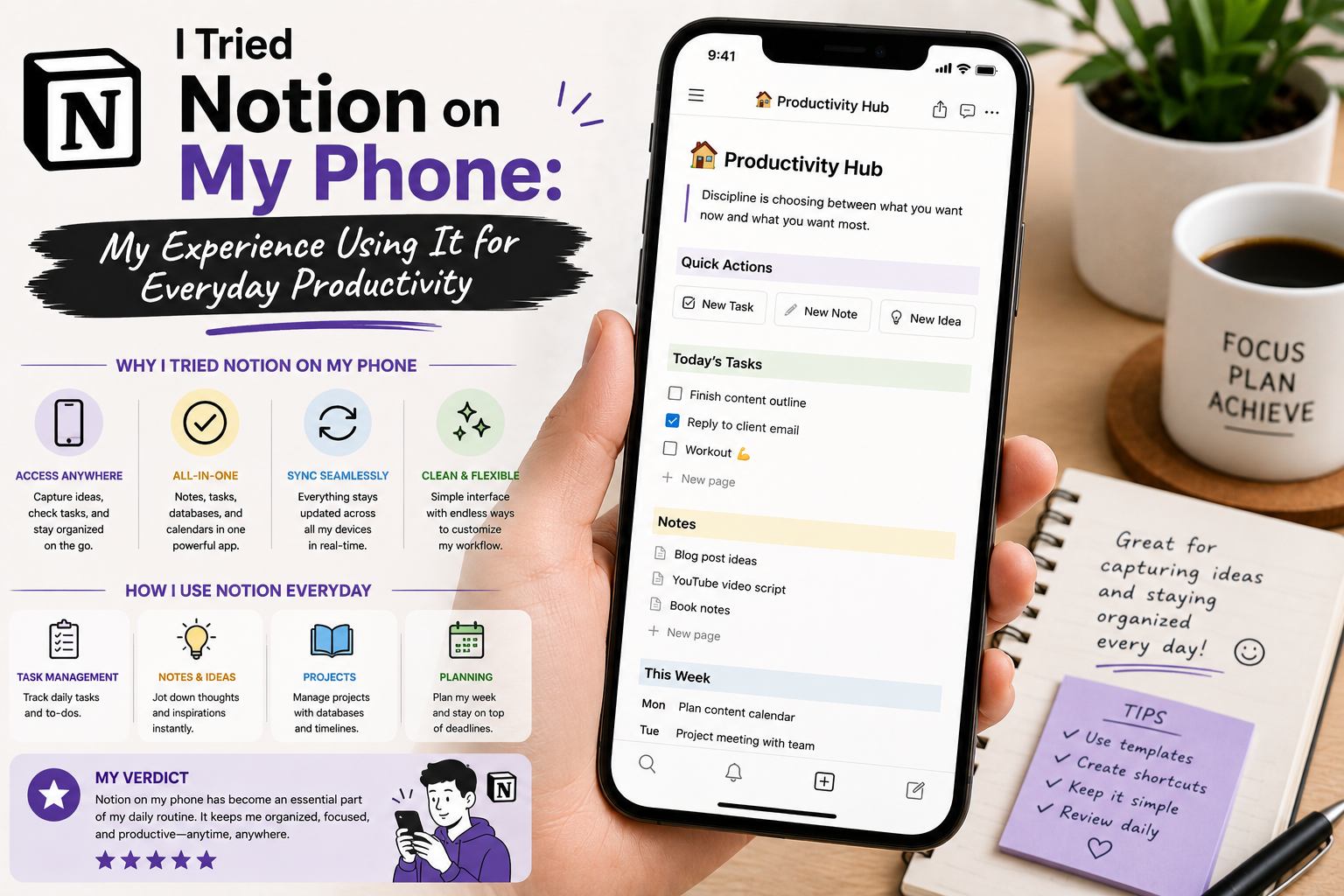
I have always liked the idea of keeping my work and personal notes organized in one place. The problem was that my information was usually scattered across different apps. Some ideas were saved in a notes application, tasks were written on paper, important links were stored in browser bookmarks, and project information was often buried inside messaging conversations.
I decided to try Notion on my phone to see whether one mobile productivity app could actually simplify my daily routine.
I was particularly interested in using it away from my computer. A productivity system is only useful to me if I can access it when an idea appears, whether I am working at my desk, traveling, or simply waiting somewhere.
Why I Chose Notion
Notion combines notes, documents, databases, task management, project organization, and collaboration features in one workspace.
That flexibility was the main reason I wanted to test it.
Instead of maintaining separate apps for every type of information, I wanted to create a simple system where I could keep notes, to-do lists, project information, and useful references together.
The official Notion website describes the platform as a workspace for notes, docs, projects, and knowledge management, with applications available for mobile devices.
Getting Started on My Phone
The first thing I noticed was that the mobile application felt different from using Notion on a desktop.
The basic concept was the same, but the smaller screen naturally changed how I interacted with pages.
I started with a simple workspace rather than trying to recreate a complicated productivity system.
My first pages included daily tasks, project notes, ideas, and a list of useful resources.
Keeping things simple helped me understand the application without becoming overwhelmed.
Capturing Ideas Became Easier
One of my favorite aspects of using Notion on my phone was quick note-taking.
Ideas often appear at inconvenient times.
Previously, I would write something in a temporary notes app and tell myself that I would organize it later.
That “later” rarely happened.
With Notion, I could capture an idea directly inside the workspace where I intended to use it.
This small change made my notes feel more connected to my projects.
I Started Using Pages Differently
One thing I learned was that Notion is not simply a digital notebook.
Pages can be structured in many ways.
I could create headings, lists, tables, checklists, links, and other content blocks.
This made it possible to build a simple project page rather than keeping everything as a long stream of text.
However, I also discovered that too much organization can become its own distraction.
I initially created too many pages and categories.
Eventually, I simplified the structure.
My Daily Task List Became More Practical
I created a basic daily task page to keep track of things I needed to complete.
The phone was particularly useful for checking tasks throughout the day.
I could mark completed items while away from my computer and add new tasks when something unexpected came up.
This helped me maintain continuity between different parts of my day.
However, I learned not to put every tiny thought into my task list.
A huge list can become demotivating.
I found it more useful to separate actionable tasks from general notes and ideas.
Databases Were Powerful but Required Learning
Notion databases were one of the features I found most interesting.
Instead of simply writing a list of projects, I could organize information into structured records.
For example, I could create a project database containing a project name, status, priority, deadline, and notes.
The same information could then be viewed in different ways.
This was powerful, but it also introduced a learning curve.
I had to understand properties, views, filters, and relationships before I could use databases effectively.
My advice is to start with a simple database and add complexity only when you actually need it.
Using Notion Away From My Computer
This was where the mobile experience became especially useful.
I could review project information while away from my desk.
I could add a quick note during a meeting.
I could check a task list while traveling.
I could save an idea immediately instead of relying on memory.
That convenience was probably the strongest reason I continued using the application.
The value of mobile productivity is not necessarily doing complicated work on a phone.
Sometimes it is simply making important information available when you need it.
The Mobile Screen Had Limitations
The experience was not perfect.
Editing complicated pages on a small screen can be less comfortable than working on a computer.
Large databases and heavily structured pages can also feel more difficult to navigate on mobile.
For me, the best approach was to use the phone for quick actions and lightweight editing while using a computer for larger organizational tasks.
That division made the overall experience much better.
Templates Helped Me Start Faster
Another useful feature was the availability of templates.
Instead of creating every page from scratch, I could use an existing structure as a starting point.
Templates can be helpful for project management, meeting notes, planning, habit tracking, and other workflows.
However, I learned that copying a complicated template does not automatically make me more productive.
I preferred simple templates that matched the way I actually worked.
Collaboration Was Another Interesting Area
Notion is also designed for collaboration.
Depending on the workspace and plan, users can share pages and work together on documents and projects.
Even when I was primarily using the app for personal productivity, I could see how the same system could become useful for a small team.
Project notes, documentation, meeting information, and shared tasks can all live in one workspace.
Notifications and Distractions
I also became more aware of notifications.
A productivity application can become counterproductive if it constantly interrupts you.
I therefore tried to keep notifications focused on information that genuinely required attention.
The goal was not to interact with the app every few minutes.
The goal was to make the app support my work.
Free vs. Paid Plans
Notion offers a free plan as well as paid plans with additional features. The exact limits and features can change over time, so I recommend checking the current official pricing page before choosing a plan.
For personal note-taking and basic organization, the free version can be a useful place to start.
More advanced collaboration, administration, or business requirements may make a paid plan more appropriate.
Where to Download Notion
If you want to try Notion on your phone, I recommend downloading it from official sources.
Download Notion for iPhone and Android from the Official Website
You can also access Notion directly through its official website:
Visit Notion’s Official Website
For security and reliability, I recommend avoiding modified or unofficial versions of productivity applications.
What I Would Do Differently
If I started using Notion again from scratch, I would keep my workspace much simpler.
I would begin with only four areas:
- Daily tasks
- Projects
- Notes
- Reference information
After using the system for a while, I would add databases or additional pages only when a genuine need appeared.
This approach would prevent me from spending more time designing the productivity system than actually completing my work.