
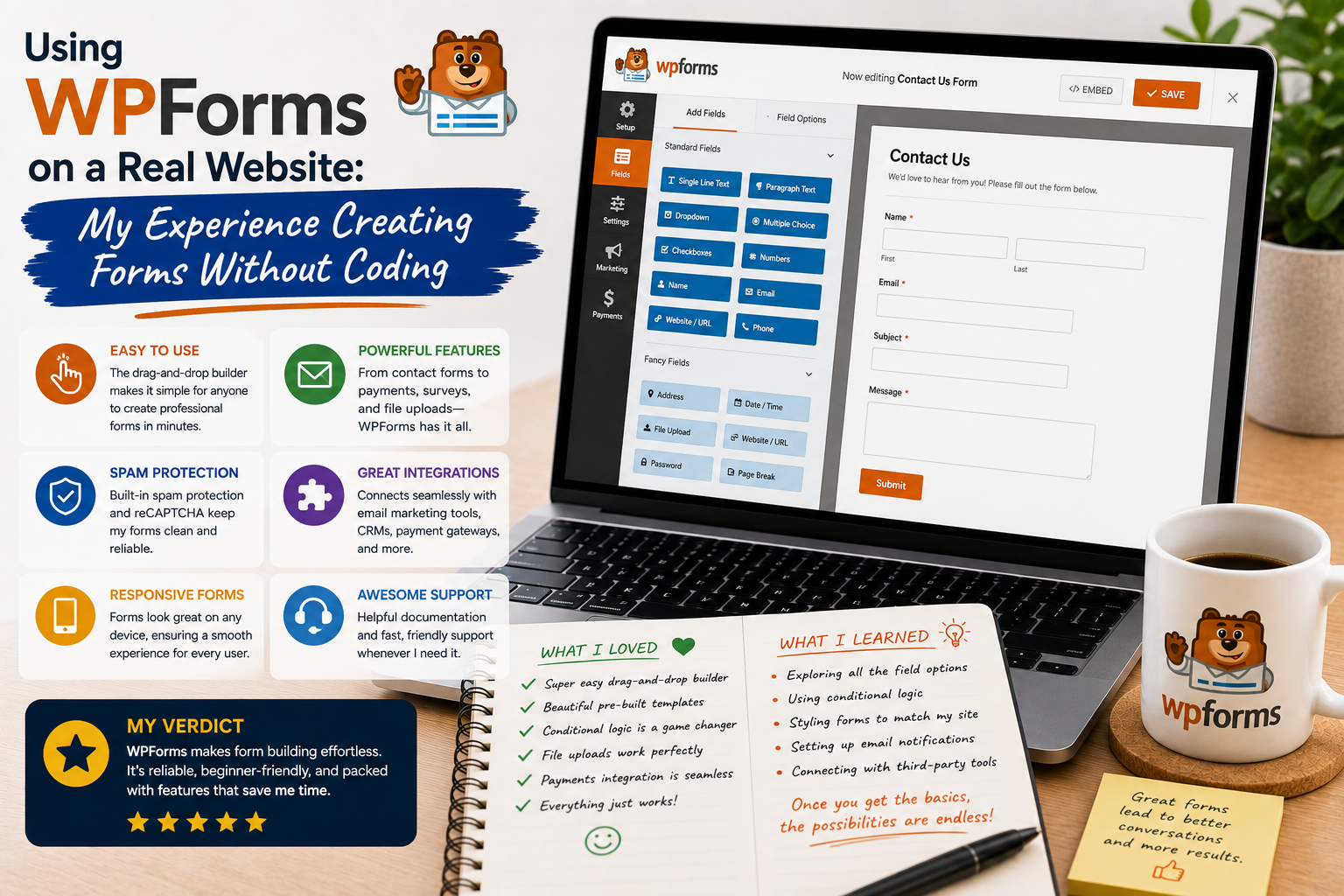
When I first built a WordPress website, I thought creating a contact form would be one of the easiest tasks. I assumed I could simply add a few fields, publish the page, and forget about it.
In reality, choosing the right form tool became more important once the website started receiving visitors.
I wanted a way to create contact forms, collect useful information, and manage submissions without writing PHP or JavaScript. That was when I decided to try WPForms.
After using it on a real website, I discovered that creating forms without coding was indeed possible, but the bigger lesson was understanding how form design affects the people who actually use them.
Why I Tried WPForms
My primary goal was to create professional forms without manually writing code.
I wanted a simple contact form but also wanted the flexibility to create other types of forms later.
WPForms is designed as a drag-and-drop WordPress form builder. Its official website highlights features for creating contact forms, payment forms, surveys, registration forms, and other types of online forms.
That sounded useful because I did not want to install a different plugin every time I needed a slightly different form.
Getting Started Was Simple
The first thing I noticed was the visual form-building interface.
Instead of writing HTML for each input field, I could select fields and arrange them visually.
I started with a basic contact form containing a name field, email address, subject, and message.
The process felt intuitive.
I could change field labels, mark fields as required, rearrange their order, and adjust various settings without opening a code editor.
For my first test, I had a working form much faster than I expected.
The Drag-and-Drop Builder Was My Favorite Feature
The drag-and-drop interface was probably the feature I appreciated most.
I could add a field and immediately see how the form was structured.
This was especially helpful when I wanted to experiment with different layouts.
For example, instead of putting every field on its own line, I could create a more compact arrangement for related information.
I did not need to understand complicated CSS just to make basic changes.
That made the process much less intimidating.
I Learned That Simple Forms Are Often Better
One mistake I made was trying to collect too much information.
I initially thought that asking visitors for additional details would help me understand their requests better.
Then I realized that every additional field creates another reason for someone to abandon the form.
I eventually reduced the form to only the information I actually needed.
The result was cleaner and easier to complete.
This became one of my biggest lessons:
A form should ask for enough information to accomplish its purpose—not everything you might possibly want to know.
Conditional Logic Was Interesting
As I explored WPForms further, I became interested in conditional logic.
This allows form behavior to change depending on a user’s responses, depending on the features available in the selected WPForms plan.
For example, a form can display additional questions when someone selects a particular option.
This can make complicated forms feel simpler because visitors only see fields relevant to them.
I found this particularly useful when thinking about inquiry forms.
Instead of creating one enormous form containing every possible question, conditional fields can create a more focused experience.
Notifications Needed Careful Testing
Another area I paid attention to was email notifications.
A form is not particularly useful if someone submits it and the website owner never receives the message.
I therefore tested the form several times.
I checked whether submissions arrived correctly and whether notification emails contained the information I expected.
This taught me that form testing should happen before publishing.
It is not enough to see the form visually and assume everything works.
Spam Became an Important Consideration
Once a form is publicly available, automated submissions can become a problem.
I learned that spam protection is an important part of form management.
WPForms supports various anti-spam features and integrations, depending on configuration and plan.
I also realized that adding unnecessary complexity to a form can make legitimate visitors uncomfortable.
The goal is to find a balance between protecting the website and keeping the form convenient.
Mobile Testing Was Essential
I tested my forms on both desktop and mobile devices.
This was important because form fields that looked perfectly fine on a large monitor could feel cramped on a smartphone.
I checked field spacing, buttons, labels, error messages, and overall readability.
The experience reminded me that responsive design is not just about making the page itself responsive.
Every interactive element needs to be comfortable to use.
I Started Thinking About Accessibility
Another lesson was the importance of making forms understandable to different users.
Clear field labels, logical ordering, helpful error messages, and sufficient contrast can make forms easier to use.
A visually attractive form is not automatically a good form.
It needs to communicate what visitors should enter and what happens after they submit it.
Integrations Can Expand the Possibilities
One reason WPForms can be useful beyond a simple contact page is its ecosystem of integrations.
Depending on the plan and setup, forms can connect with services related to payments, email marketing, automation, CRM systems, and other workflows.
That means a form can become more than a message box.
It can become part of a larger business process.
However, I learned not to add integrations simply because they were available.
Every additional service adds another dependency to the website.
Free vs. Paid Features
WPForms offers a free version called WPForms Lite, while paid plans provide additional functionality. The official WordPress Plugin Directory lists the free plugin and its available features.
For a simple contact form, the free version may be enough.
More advanced requirements—such as complex workflows, additional integrations, payment-related functionality, or advanced form features—may require a paid plan.
I would recommend starting with the free version if your needs are basic.
What I Would Do Differently
If I were creating my first form again, I would plan the visitor’s experience before opening the form builder.
I would decide:
- What information is actually necessary
- Which fields should be required
- What happens after submission
- Where notifications should go
- How spam will be handled
- How the form looks on mobile
- What confirmation message visitors should see
This planning saved me from repeatedly rebuilding the form.
Where to Download WPForms
If you want to try WPForms, you can download the free version directly from the official WordPress Plugin Directory:
Download WPForms from WordPress.org
For the premium version and additional features, visit the official WPForms website:
Get WPForms from the Official Website
I recommend downloading the plugin only from official sources. Avoid cracked or “nulled” versions because form plugins can handle visitor information, making website security particularly important.