
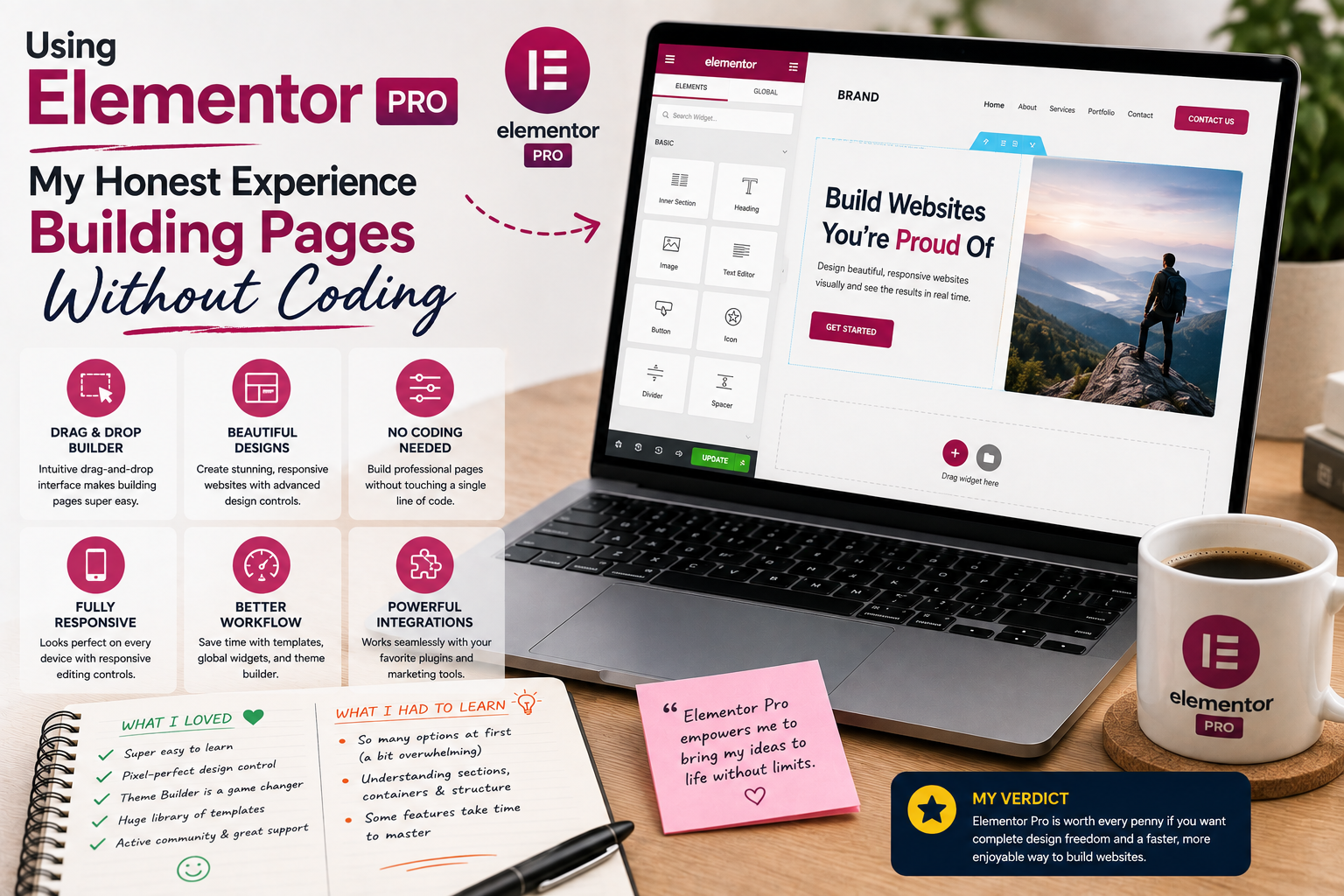
When I first started building websites with WordPress, I assumed that creating professional-looking pages would require at least some knowledge of HTML, CSS, and JavaScript. While learning basic code is certainly useful, I wanted to know whether I could build a complete website experience without writing code for every design adjustment.
That curiosity led me to try Elementor Pro.
I had seen demonstrations of people dragging elements onto pages and creating sophisticated layouts in minutes. It looked almost too easy. So, instead of judging Elementor from promotional screenshots, I decided to use it on a real website and see how it performed during everyday work.
After several weeks of experimenting, I discovered that Elementor Pro can make visual website building much easier, but it also comes with a few lessons that every beginner should understand.
Why I Tried Elementor Pro
My main reason for trying Elementor Pro was simple: I wanted more control over page design without constantly editing code.
My WordPress theme handled the basic structure of the website, but I wanted to create custom landing pages, content sections, buttons, image blocks, and other layouts.
Elementor describes its product as a visual website builder that allows users to create websites through a drag-and-drop interface. Its Pro version adds additional tools for building and customizing websites.
That sounded exactly like what I was looking for.
Getting Started Was Easy
The first thing that impressed me was the visual interface.
Instead of opening a code editor, I could work directly with page elements.
I could add a heading, move an image, adjust spacing, change colors, modify typography, and rearrange sections while seeing the result immediately.
For someone who likes experimenting with design, this was enjoyable.
The process felt less technical than traditional website development.
However, I quickly discovered that “easy to start” does not necessarily mean “easy to master.”
The Drag-and-Drop Experience Was My Favorite
The biggest advantage for me was the drag-and-drop workflow.
I could build a basic page structure and then gradually refine it.
For example, I might begin with a simple hero section containing a headline, paragraph, button, and image.
Then I could experiment with spacing, alignment, typography, and responsive settings.
The visual feedback made the process much faster than repeatedly editing code and refreshing a browser.
It also encouraged experimentation.
I could try an idea, decide that I did not like it, and change it immediately.
I Learned That More Options Can Be Overwhelming
Elementor Pro provides many controls.
At first, I thought that was entirely positive.
Then I started building more complicated pages.
Suddenly, there were settings for margins, padding, typography, positioning, responsive behavior, backgrounds, animations, and other details.
It was easy to spend ten minutes adjusting something that visitors might never notice.
Eventually, I developed a simple rule:
If a design change does not improve usability or communication, I probably do not need it.
That helped me work much faster.
Templates Saved Me Time
Another feature I appreciated was the availability of professionally designed templates and website kits.
Starting from an empty page can be difficult, especially when you are unsure how to structure the content.
Templates provided a useful starting point.
I rarely kept them exactly as provided.
Instead, I replaced images, rewrote text, adjusted colors, changed fonts, and reorganized sections.
This gave me the speed of a template while still allowing me to create something that felt more personal.
Responsive Design Required Attention
One of the most important lessons was that desktop design is not enough.
A page that looked excellent on a large monitor could become awkward on a smartphone.
Elementor provides responsive controls that allow certain design settings to be adjusted for different device sizes.
I used these controls to refine headings, spacing, columns, buttons, and other elements.
This became part of my normal workflow.
I stopped thinking of mobile optimization as something to check only at the end.
Instead, I considered it throughout the design process.
Performance Was Something I Had to Watch
Building pages visually was fun, but I also became more conscious of performance.
It is tempting to add animations, large images, video backgrounds, decorative elements, and multiple widgets simply because they are available.
I learned that this can make a page more complicated than necessary.
Elementor provides performance-related features and optimization options, but the final speed of a website still depends on many factors, including hosting, images, plugins, theme configuration, and page structure.
My solution was simple: use only the elements that served a purpose.
Elementor Pro Changed My Workflow
Before using Elementor, I often thought about website design in terms of theme limitations.
After using it, I started thinking about pages in terms of sections and components.
That changed how I approached projects.
Instead of asking, “Does my theme support this layout?” I could ask, “How can I construct this layout?”
That creative freedom was probably the most valuable part of my experience.
But It Does Not Replace Good Design
One thing I learned quickly is that a page builder cannot automatically make a page look professional.
You still need good content.
You still need a logical structure.
You still need appropriate typography.
You still need consistent colors.
You still need good images.
The builder provides the tools, but the decisions are still yours.
A page with twenty animations is not necessarily better than a clean page with one clear message.
Plugin and Theme Compatibility Still Matters
I also learned to consider Elementor as part of a larger WordPress ecosystem.
The theme, plugins, hosting environment, and WordPress version all interact with each other.
Before making significant changes, I preferred creating backups and testing new configurations carefully.
This became especially important when experimenting with additional plugins.
A visual builder makes design easier, but it does not eliminate the normal responsibilities of website maintenance.
Where to Download Elementor Pro
If you want to try Elementor, I recommend downloading the free version from the official WordPress Plugin Directory:
Download Elementor from WordPress.org
For Elementor Pro, use the official Elementor website:
Get Elementor Pro from the Official Website
Elementor Pro is a commercial product, so there is no legitimate reason to download a cracked or “nulled” copy. Avoid unofficial versions because modified plugin files can introduce security, compatibility, and maintenance problems.
Was Elementor Pro Worth It?
For my particular workflow, yes.
The biggest benefit was not that I could build websites without knowing any code.
It was that I could spend more time thinking about the user experience and less time worrying about small implementation details.
I could create custom layouts, experiment with designs, and make visual changes quickly.
However, I also discovered that the more freedom you have, the more discipline you need.
Without a plan, it is easy to create inconsistent pages or add unnecessary elements.