
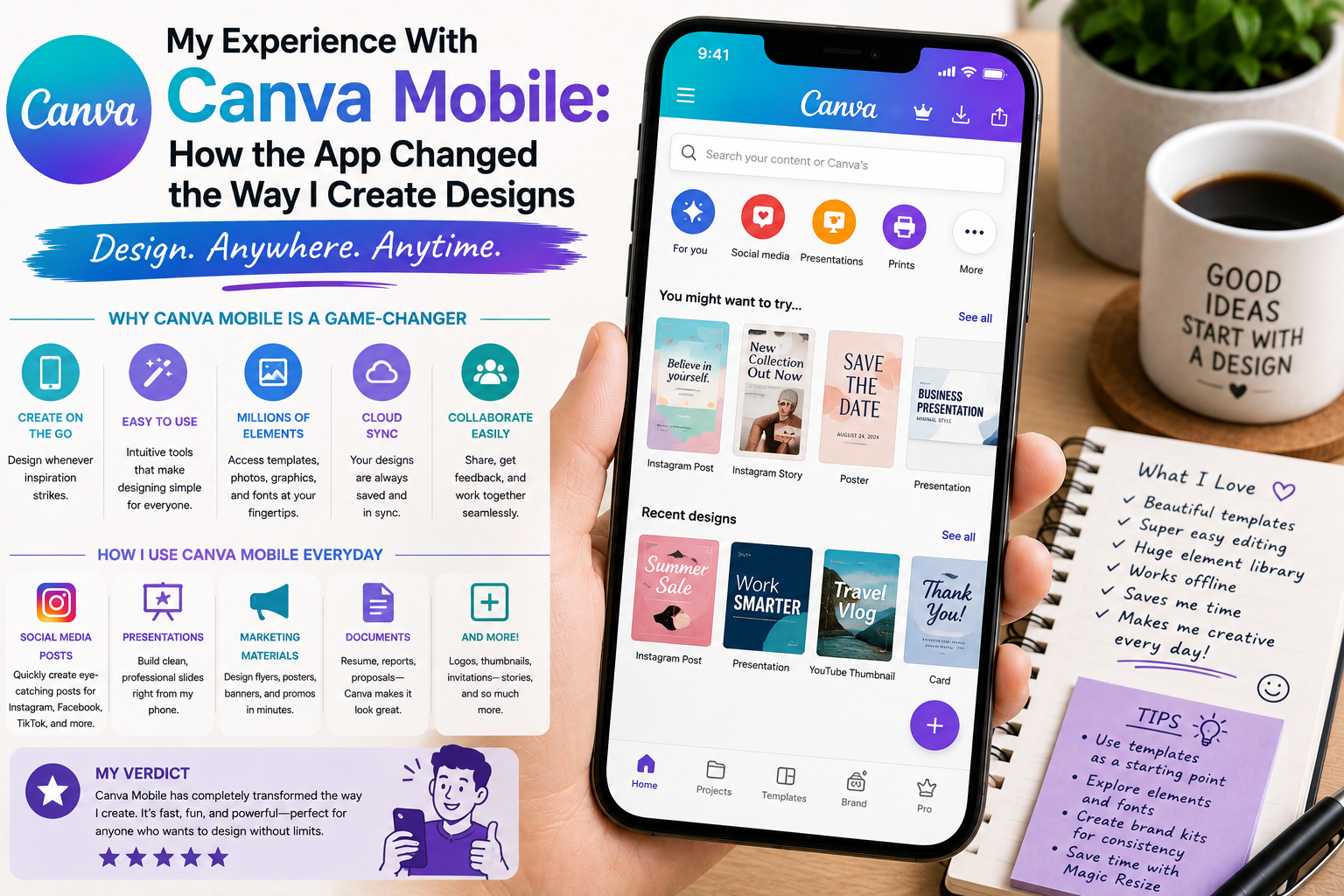
I used to think that creating a good design required a computer, a large monitor, and professional design software. Whenever I wanted to create a banner, social media post, presentation, or promotional graphic, I would usually wait until I was back at my desk.
That changed when I started using Canva Mobile.
At first, I only installed the app because I wanted a convenient way to make quick edits. I did not expect it to become one of the tools I used regularly for everyday design work.
After spending time creating different types of graphics on my phone, I discovered that mobile design could be much more practical than I originally imagined.
Why I Tried Canva Mobile
My main reason for trying Canva on my phone was convenience.
There were many situations when I had an idea for a design but did not have access to my computer. Sometimes I wanted to create a quick social media graphic, resize an existing image, or make a simple promotional banner.
Canva’s mobile application is designed for both iOS and Android devices, while the platform also works across desktop and other supported devices.
That meant I could start working on a design without waiting until I was sitting at my desk.
Getting Started Was Surprisingly Easy
The first thing I noticed was how familiar the basic Canva experience felt.
I could select a template, add text, insert images, adjust elements, and export the finished design.
The smaller screen naturally required some adjustment, but the overall workflow was easy to understand.
Instead of beginning with a completely blank canvas, I usually searched for a template that was close to what I wanted.
That immediately saved time.
Templates Changed My Approach
Templates became one of my favorite parts of the mobile experience.
I used them as starting points rather than finished designs.
For example, if I needed a promotional graphic, I could choose a suitable layout and then replace the images, text, fonts, and other elements.
This was particularly useful when I needed something quickly.
Canva currently promotes a large collection of customizable templates and design formats across social media, presentations, video, websites, documents, and other content types.
The important lesson for me was that templates are most useful when they provide inspiration rather than encouraging me to copy everything exactly.
Designing With a Touchscreen Felt Different
The biggest adjustment was using my fingers instead of a mouse.
Moving objects around the canvas was intuitive, but precise positioning sometimes required more attention.
I occasionally zoomed in to adjust small elements and then zoomed back out to review the entire design.
After some practice, this became natural.
I also learned to keep mobile designs relatively simple.
The more elements I added, the harder it became to manage everything on a small screen.
I Started Creating More Frequently
This was probably the biggest change Canva Mobile made for me.
Previously, design was something I scheduled.
With the mobile app, design became something I could do whenever inspiration appeared.
I could create a simple graphic while traveling, edit an image during a break, or prepare a social media post without opening my computer.
That convenience changed my workflow.
Instead of thinking, “I will make this later,” I could often create a first version immediately.
Social Media Designs Were Especially Convenient
Canva Mobile worked particularly well for social media content.
I could choose the appropriate format, select a template, customize the content, and prepare the design for publishing.
This was useful when creating multiple graphics that needed to maintain a consistent visual style.
I could reuse layouts and change the content rather than starting from scratch every time.
That made content production much faster.
Photo Editing Was Another Useful Feature
I also experimented with basic photo editing.
Simple adjustments such as cropping, resizing, adding text, and combining images were easy to perform.
For quick website graphics or promotional images, I often did not need a more complicated photo editor.
Canva’s mobile ecosystem also includes photo and video editing tools, allowing users to work with different types of visual content inside the same platform.
This made the app feel more like an all-in-one creative workspace than just a graphic design tool.
Video Editing Expanded the Experience
Eventually, I tried creating short videos.
I was initially skeptical because video editing on a smartphone can feel complicated.
However, Canva provides mobile video editing features such as trimming, splitting, resizing, transitions, text overlays, animations, and other tools.
I found the experience useful for short promotional videos and social media content.
I would not necessarily replace every professional video editing application with Canva, but for quick projects, it was surprisingly capable.
Cloud Access Was Extremely Useful
Another feature I appreciated was being able to move between devices.
Canva’s mobile experience is connected to its broader platform, allowing designs to be accessed across supported devices. The company also describes cloud storage and the ability to move between mobile and desktop workflows.
This was important for me.
I could begin an idea on my phone and continue refining it later on a larger screen.
That combination was much more practical than trying to do every part of a complex design on the phone.
Not Everything Was Better on Mobile
Despite enjoying the experience, I did notice limitations.
Detailed design work was still easier on a computer.
When working with many layers, tiny elements, or complicated layouts, the larger screen and mouse made precision much easier.
I therefore stopped thinking about Canva Mobile as a replacement for desktop design.
Instead, I treated it as an extension of my design workflow.
That was a much better approach.
Free and Premium Features
Canva offers a free mobile application, while some advanced tools and content are available through paid plans. The official Canva mobile pages describe the app as available for free download on Android and iOS.
For simple designs, the free version can be a useful starting point.
If someone needs advanced features, premium assets, additional AI tools, or other professional capabilities, they can evaluate whether a paid plan makes sense for their particular workflow.
Where to Download Canva Mobile
For Android users, I recommend downloading Canva from the official Canva website:
For iPhone and iPad users:
Canva’s official pages confirm that the mobile application is available for Android and iOS devices.
I recommend avoiding modified or unofficial APK files. Downloading the application from official sources is a safer way to ensure you receive the legitimate version and current updates.
What I Would Do Differently
If I were starting with Canva Mobile again, I would avoid trying to build complicated designs immediately.
I would start with simple projects such as:
- Social media posts
- Website banners
- Promotional graphics
- Simple presentations
- Basic videos
- Photo collages
Once I became comfortable with the mobile interface, I would gradually experiment with more advanced designs.
I would also keep important brand assets organized so that colors, fonts, logos, and visual elements remained consistent.