
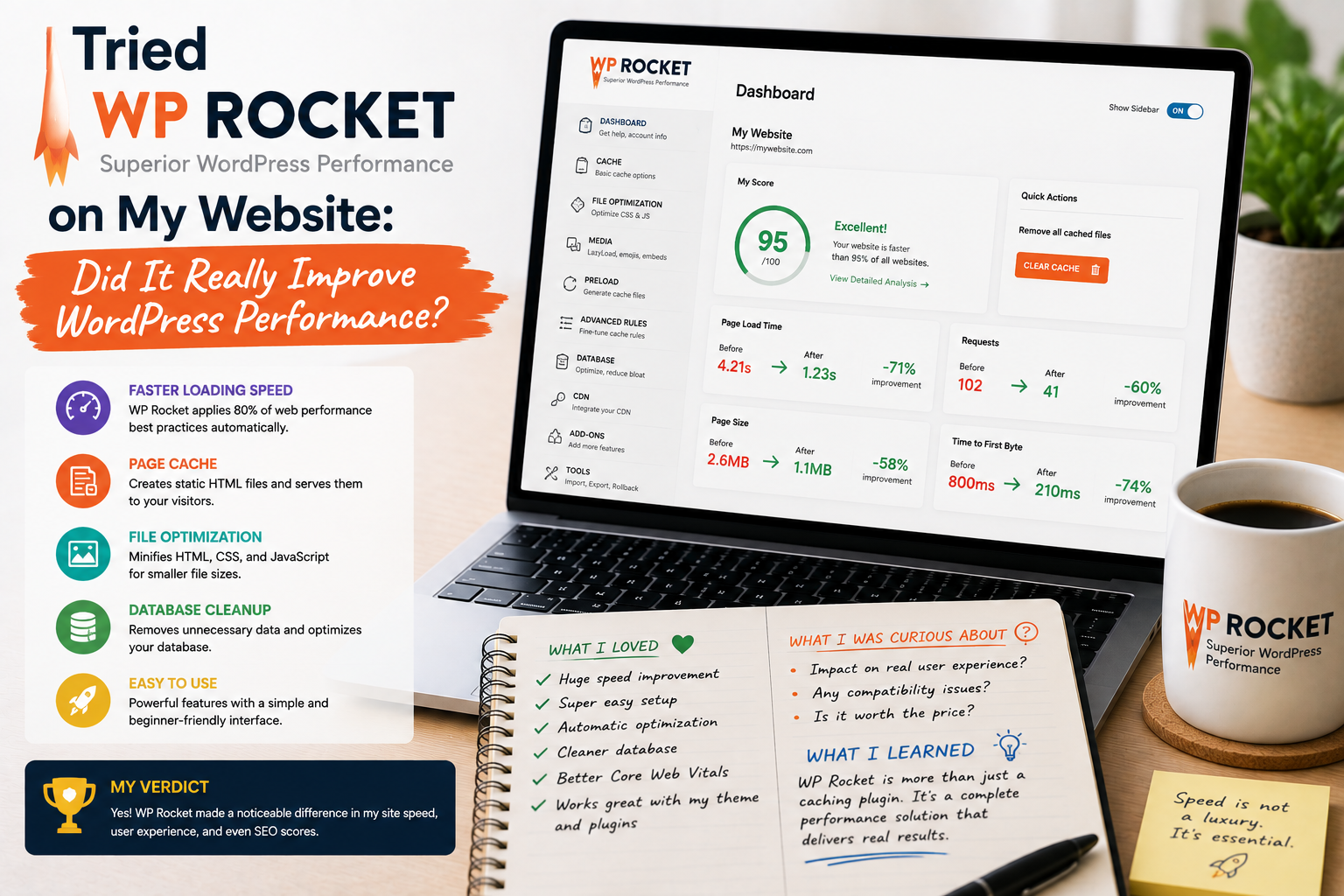
Website speed had always been something I knew I should pay attention to, but I often postponed serious optimization. My WordPress website worked, the pages loaded, and visitors could access the content. So why change anything?
Eventually, I started noticing that some pages felt slower than I expected, particularly when they contained large images, multiple plugins, and more complex layouts. That was when I decided to try WP Rocket, a premium WordPress performance and caching plugin.
Instead of assuming that installing a caching plugin would magically make everything faster, I wanted to see what actually changed during everyday website use.
Why I Tried WP Rocket
My main goal was simple: improve website performance without spending hours manually configuring complicated server settings.
WP Rocket caught my attention because it focuses on caching and a range of front-end optimization features. According to its documentation, page caching is enabled automatically after activation, while additional options cover areas such as CSS and JavaScript optimization, media, preloading, database optimization, and content delivery.
That sounded useful for someone who wanted practical improvements without becoming a performance engineer.
Installation Was Surprisingly Easy
The installation process was one of the first things I liked.
After purchasing WP Rocket, the plugin ZIP file could be downloaded from the WP Rocket account area and uploaded through the WordPress dashboard. The official documentation currently lists PHP 7.3+ and WordPress 5.8+ as minimum requirements.
Once I activated it, I did not immediately change every available setting.
Instead, I wanted to see what happened with the default configuration first.
That turned out to be a good decision.
Caching Made the Biggest Difference
The first feature I noticed was page caching.
Normally, WordPress has to process PHP, communicate with the database, and assemble the requested page before sending it to a visitor. WP Rocket’s page cache creates static HTML versions of pages, reducing the amount of processing required for subsequent visitors.
I could notice the difference most clearly on pages that previously required more processing.
The website felt more responsive, particularly when navigating between frequently visited pages.
It was not an overnight transformation from slow to instant, but the improvement was noticeable enough to make me continue testing.
I Learned to Test Before and After
One of my biggest lessons was that speed optimization should be measured rather than guessed.
It is easy to say, “My website feels faster.”
But that is subjective.
WP Rocket’s own documentation recommends testing performance before and after configuring its optimizations, including using tools such as Google PageSpeed.
I therefore treated performance testing as a comparison rather than looking at a single score.
The important thing was not simply getting a higher number.
I wanted to understand whether real pages became faster and whether the user experience improved.
File Optimization Was Interesting
After testing caching, I explored the file optimization features.
WP Rocket can optimize CSS and JavaScript through options such as minification, CSS delivery optimization, and deferred or delayed JavaScript execution.
These settings sounded technical at first, but the interface made experimentation relatively accessible.
However, I learned an important rule:
Never enable every optimization blindly on a production website.
Some optimization settings can conflict with themes or plugins.
The official documentation specifically warns that additional optimizations can sometimes break a website and recommends troubleshooting by disabling the problematic option if issues occur.
So I enabled changes gradually and checked the website after each significant adjustment.
Images Were Still My Responsibility
One thing WP Rocket did not magically solve was poor content preparation.
If I uploaded enormous images, I could not simply expect a caching plugin to make the entire website perfect.
I still needed to resize images appropriately and avoid unnecessarily large media files.
WP Rocket does provide media-related optimization features, including LazyLoad and image-related options, but good website management still begins with sensible content.
That was an important lesson.
Performance optimization works best when several good practices are combined.
I Became More Careful With Plugins
Another thing I learned was that a caching plugin does not eliminate the impact of other plugins.
My website used several plugins for different purposes.
Some were lightweight, while others performed more complex tasks.
I started reviewing whether each plugin was genuinely necessary.
This was probably one of the best side effects of the experiment.
Instead of looking for one plugin to fix everything, I started thinking about the website as a complete system.
My Website Did Not Become Faster Everywhere
This was another useful realization.
WP Rocket primarily helps with front-end performance. Its own documentation notes that it cannot generally make a slow WordPress administration area faster because the plugin focuses on the site’s front end.
So if the WordPress dashboard itself feels slow because of a problematic plugin, hosting issue, database problem, or other factor, WP Rocket should not be treated as a universal solution.
That distinction helped me set more realistic expectations.
Compatibility Matters
I also learned to be cautious when using multiple optimization plugins.
If another plugin is already minifying CSS or JavaScript, activating the same type of optimization elsewhere can create unnecessary duplication or conflicts.
WP Rocket provides compatibility with certain optimization setups and can detect some overlapping options, but I still prefer keeping optimization responsibilities as simple as possible.
My general rule became: let one tool handle a particular optimization whenever practical.
Was WP Rocket Worth It?
For my website, I would say yes.
The biggest value was convenience.
I could implement caching and several performance optimizations without manually configuring every aspect of the server.
However, I would not say that WP Rocket is necessary for every WordPress website.
A small, simple website with good hosting, optimized images, and a lightweight theme may already perform well.
The value becomes more apparent when a website has more content, plugins, traffic, or performance requirements.
Where to Download WP Rocket
WP Rocket is a commercial plugin, so I recommend downloading it directly from the official developer.
Download WP Rocket from the Official Website
After purchasing, the official documentation explains that the plugin ZIP can be downloaded from the WP Rocket account page.
Current official pricing lists a single-site license at $59 per year, with other plans available for multiple websites. The developer also currently advertises a 14-day money-back guarantee. Prices and offers can change.
I strongly recommend avoiding cracked or “nulled” versions of WP Rocket. Besides licensing concerns, modified plugin files can introduce security and maintenance problems.