
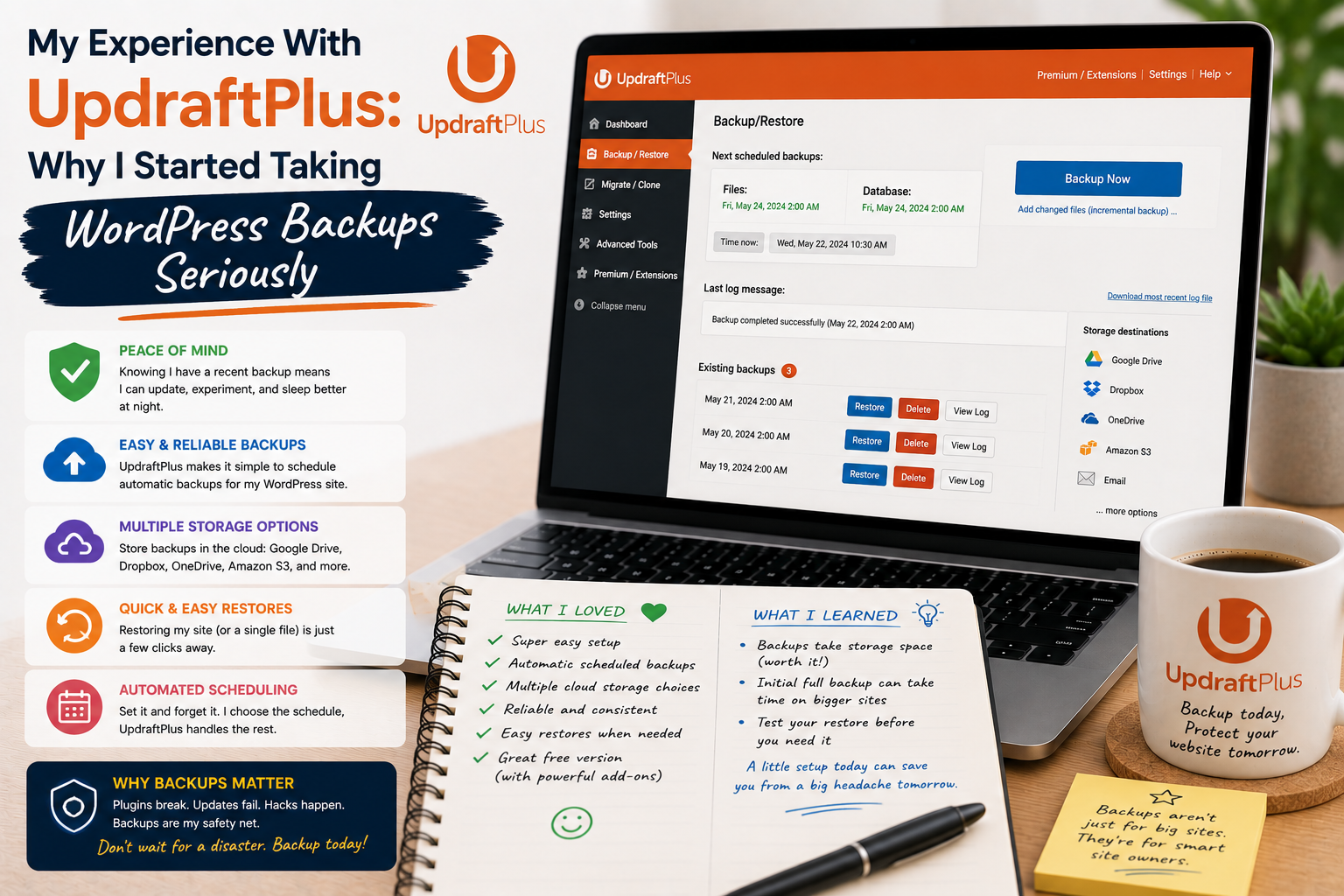
For a long time, I treated website backups as something I would deal with “later.”
My WordPress website was running normally, updates were installed, articles were being published, and visitors were accessing the pages without obvious problems. Because nothing appeared to be wrong, I assumed I did not need to worry too much about backups.
That changed after one small website problem reminded me how quickly things can go wrong.
I started looking for a practical backup solution and eventually tried UpdraftPlus. What began as a simple experiment became one of the most useful lessons I have learned about managing a WordPress website.
Why I Started Looking for a Backup Plugin
The problem was not necessarily that WordPress itself was unreliable.
The problem was that my website had many moving parts.
There was the WordPress core, theme, plugins, database, images, settings, and content. Every update or configuration change introduced another opportunity for something unexpected to happen.
I realized that having a working website was not the same as having a recoverable website.
That distinction completely changed how I thought about backups.
Installing UpdraftPlus
My first step was to install UpdraftPlus through the WordPress dashboard.
The free version is available through the official WordPress Plugin Directory, while additional premium features are offered separately.
The official plugin listing describes UpdraftPlus as a backup and restoration plugin that can schedule backups and send them to remote storage services.
The installation itself was straightforward.
The more important part came afterward: deciding what should be backed up and where those backups should be stored.
My First Backup Changed My Perspective
Before using a backup plugin, I had a vague idea that a backup simply meant copying the website.
I quickly learned that a WordPress backup can involve different components.
There is the database, which contains important information such as posts, pages, settings, and other data.
Then there are website files, including themes, plugins, media, and other uploaded content.
UpdraftPlus allows users to configure database and file backups separately.
Seeing these options made me realize that a proper backup strategy needs to be intentional.
Scheduling Backups Was a Major Improvement
The feature that made the biggest difference for me was scheduling.
Before this, backups were something I might remember to do manually.
That was obviously not ideal.
With scheduled backups, I could create a routine rather than relying entirely on memory.
UpdraftPlus supports scheduled backups and allows users to configure how frequently files and databases should be backed up.
The schedule I chose depended on how frequently the website changed.
A site that publishes several times a day may need a different schedule from a small personal blog that changes once a week.
That was another useful lesson: backup frequency should match the importance and activity level of the website.
Remote Storage Made Me Feel Safer
Another feature I appreciated was the ability to store backups away from the website’s server.
This matters because storing the only backup on the same server as the website creates an obvious weakness.
If the hosting account experiences a serious problem, having the backup stored there may not be enough.
UpdraftPlus supports multiple remote storage destinations, depending on the version and configuration.
For me, remote storage changed backups from “a copy somewhere on my hosting account” into something much more useful.
The Restore Process Was the Real Test
Creating backups is one thing.
Restoring them is another.
A backup that cannot be restored when needed is not particularly useful.
This made me interested in understanding the restoration process rather than simply watching successful backup notifications.
UpdraftPlus provides restoration tools through the WordPress dashboard, allowing users to restore website components from available backups.
I also learned an important principle:
Do not wait for a disaster to discover whether your backup strategy works.
Testing a recovery process in a safe environment can reveal problems before an emergency occurs.
Updates No Longer Felt Quite So Risky
One unexpected benefit was psychological.
Previously, I sometimes hesitated before updating plugins or themes.
Not because updates were necessarily dangerous, but because I knew something could potentially go wrong.
Having a backup system made me more comfortable with routine maintenance.
It did not eliminate the need for caution.
I still check updates and avoid making multiple major changes simultaneously.
But knowing that I had a recent backup gave me a recovery option.
I Learned That Backups Are Not the Same as Security
Another important lesson was understanding the difference between backups and security.
A backup helps you recover from certain problems.
It does not prevent malware, unauthorized access, weak passwords, vulnerable plugins, or other security issues.
Similarly, a security plugin cannot replace a backup strategy.
These tools solve different problems.
Thinking about them separately helped me create a more sensible approach to website maintenance.
What About Large Websites?
My experience also made me think about storage.
If a website contains thousands of images or large files, backups can become much larger.
That means storage limits, backup frequency, retention policies, and hosting resources need to be considered.
I learned not to keep an unlimited number of old backups without thinking about storage.
A sensible retention strategy is important.
For example, keeping several recent backups may provide a balance between recovery options and storage requirements.
The Biggest Mistake I Avoided
Before using a proper backup system, I had occasionally assumed that my hosting provider’s backup service was enough.
While hosting backups can be valuable, I became more comfortable having an additional backup strategy under my control.
The exact backup options available depend on the hosting provider and plan, so website owners should understand what their hosting company actually backs up, how long backups are retained, and how restoration works.
Free or Premium?
The free version of UpdraftPlus can already provide useful backup functionality.
For a small website, that may be enough.
Premium features become more interesting for users who need additional storage integrations, advanced backup capabilities, cloning or migration tools, and other functionality.
I would recommend starting with the free version and determining whether it meets your requirements before paying for additional features.
Where to Download UpdraftPlus
You can download the free version directly from the official WordPress Plugin Directory:
Download UpdraftPlus from WordPress.org
For premium features, use the official UpdraftPlus website:
I strongly recommend avoiding cracked or “nulled” versions of backup plugins. A backup plugin has access to important website files and database information, so using modified software from an unknown source can introduce unnecessary security risks.
What I Would Do Differently Today
If I were setting up a new WordPress website today, I would configure backups from the beginning.
My basic checklist would be:
- Schedule regular backups.
- Back up both files and the database.
- Store copies remotely.
- Keep multiple recent backup versions.
- Test restoration periodically.
- Review storage usage.
- Create a backup before major changes.
- Never rely on a single copy.
This routine takes much less effort than recovering a website without a usable backup.