
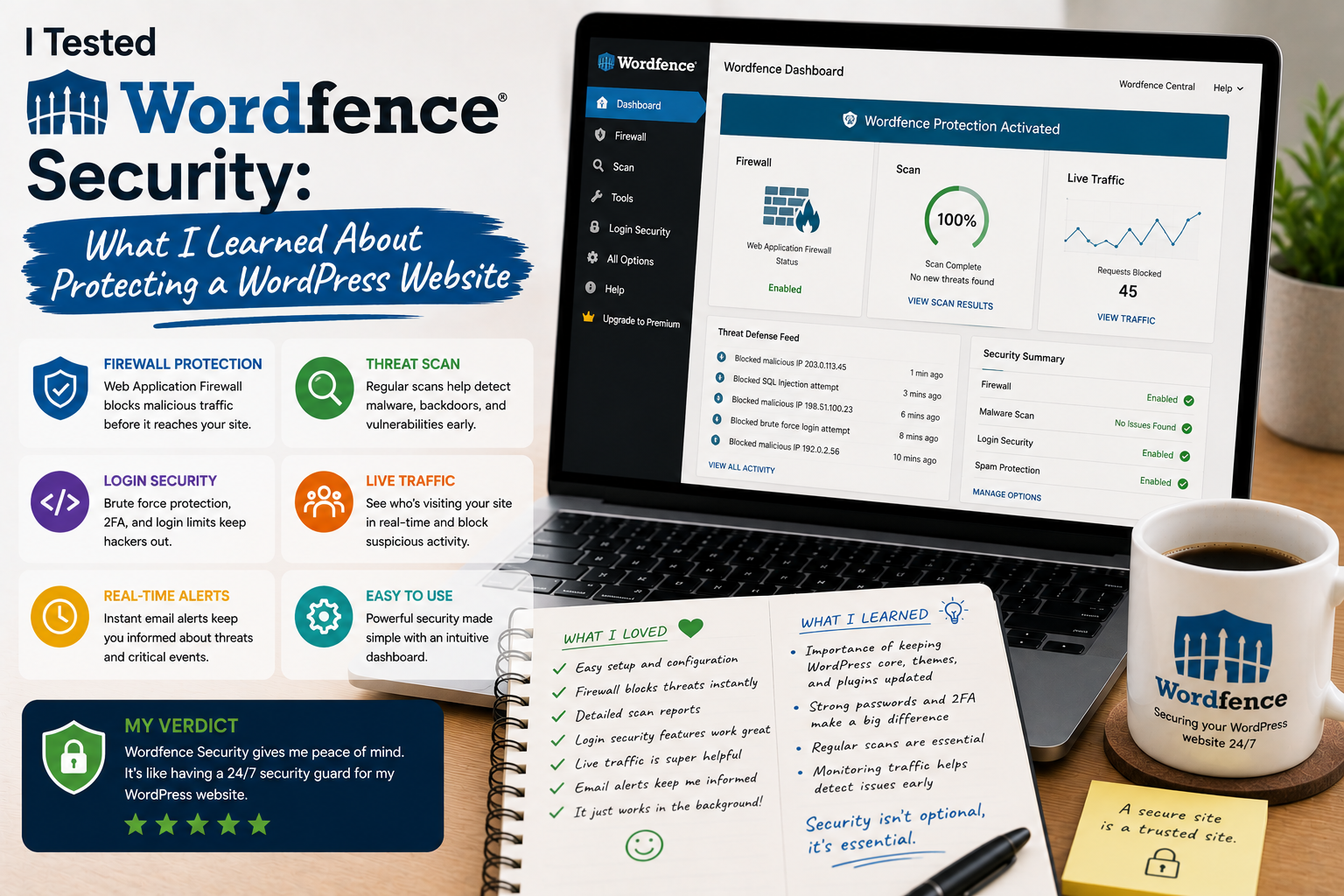
For a long time, I treated WordPress security as something that would take care of itself. I kept WordPress updated, used reasonably strong passwords, and tried not to install unnecessary plugins. It seemed sufficient—until I started thinking about how many components were actually connected to my website.
A WordPress site can contain a theme, dozens of plugins, administrator accounts, databases, uploaded files, and third-party integrations. A problem with just one component can potentially create a much bigger issue.
That was the reason I decided to try Wordfence Security.
Rather than simply installing it and assuming my website was protected, I wanted to understand what the plugin actually did and which features were useful in everyday website management.
Why I Chose Wordfence
Wordfence is a WordPress security plugin that combines a firewall, malware scanner, login security features, traffic monitoring, and other security tools. The official WordPress Plugin Directory currently lists more than five million active installations.
That made it interesting to test.
I was particularly interested in the firewall and malware scanner because I wanted something that could help identify suspicious activity rather than simply provide a security checklist.
Installation Was Straightforward
Installing Wordfence was not complicated.
I could install it directly from the WordPress plugin directory, activate it, and begin configuring the security settings.
The official installation instructions recommend starting with a scan after activation and configuring an email address for security alerts.
I appreciated the fact that the initial process encouraged me to actually examine my website instead of assuming everything was fine.
The First Scan Was an Eye-Opening Experience
The first scan was probably the most interesting part of my experience.
I expected the website to receive a clean report.
Instead, Wordfence gave me a much more detailed picture of what was happening inside the installation.
The scanner can examine WordPress core files, themes, and plugins for malware, suspicious code, modified files, malicious URLs, backdoors, and other potential problems. It can also compare certain files against versions from the WordPress repository.
Not every warning means that a website has been hacked.
That was an important lesson.
Some findings require investigation rather than immediate panic.
The Firewall Made Security Feel More Active
Before using Wordfence, I mostly thought about security as prevention through good passwords and updates.
The firewall changed that perspective.
Wordfence includes a Web Application Firewall designed to identify and block malicious traffic targeting WordPress websites.
This made security feel more active.
Instead of simply hoping attackers would not find the website, there was a system watching for certain types of suspicious requests.
Of course, no security tool can guarantee that a website will never be compromised.
But having multiple layers of protection felt much more sensible than relying on one security measure.
Live Traffic Was Surprisingly Interesting
Another feature I spent time exploring was Live Traffic.
I could see activity happening on the website, including visitors, bots, login attempts, and requests that produced errors.
The experience changed how I thought about website traffic.
I had previously looked at analytics mainly to understand visitors.
Wordfence made me realize that not all traffic exists for the purpose of reading content.
Some automated requests are simply bots crawling the internet or looking for vulnerable software.
Seeing this activity helped me understand why website security deserves regular attention.
Login Security Became a Priority
One of the most useful lessons was realizing how important administrator accounts are.
A strong password is essential, but additional authentication can provide another layer of protection.
Wordfence includes login security features such as two-factor authentication, and its current version also supports passkeys.
I found this especially useful for administrator accounts.
If someone somehow obtains a password, having an additional authentication layer can make unauthorized access more difficult.
Security Alerts Were Useful
I also configured email alerts.
The idea is simple: if something important happens, I want to know about it.
However, I learned that too many notifications can become counterproductive.
If every minor event generates an alert, it becomes tempting to ignore security emails.
I therefore tried to focus on notifications that actually required attention.
The goal is not to receive hundreds of messages.
The goal is to notice important problems quickly.
The Free Version Has Limitations
One thing I learned while testing Wordfence is that the free and premium versions do not provide exactly the same level of protection.
For example, Wordfence says Premium users receive real-time updates to firewall rules, malware signatures, and its IP blocklist, while the free version has a delay for certain Threat Defense Feed updates.
That does not make the free version useless.
It provides a substantial set of security features.
However, website owners managing important business websites may want to understand the differences between the available plans before deciding which level of protection is appropriate.
I Learned That Security Plugins Are Not Enough
Perhaps the most important lesson was that Wordfence should not be considered a complete security strategy by itself.
I still needed to:
- Keep WordPress updated
- Update themes and plugins
- Use strong passwords
- Enable additional authentication
- Remove unused plugins
- Maintain reliable backups
- Use trustworthy software
- Monitor unusual website activity
A security plugin is one layer of defense.
It cannot compensate for an outdated plugin, a weak administrator password, or an absent backup strategy.
Performance Was Something I Watched
Security scanning can require server resources, so I also paid attention to website performance.
Wordfence performs its scanning on the website’s server, and configuration can affect how security scans operate.
For a small website, this may not be particularly noticeable.
For larger websites, however, it makes sense to understand hosting resources and configure scans appropriately.
I learned that security and performance sometimes need to be balanced rather than treated as completely separate concerns.
What Surprised Me Most
The biggest surprise was how much automated activity happens on a normal WordPress website.
Even when I was not actively promoting the site, there were automated requests and bots interacting with it.
That changed my mindset.
I stopped thinking, “Nobody knows about my small website, so why would anyone attack it?”
Security problems do not necessarily depend on someone personally targeting your website.
Automated systems can scan large numbers of websites looking for known weaknesses.
Where to Download Wordfence Security
If you want to try Wordfence, I recommend downloading it directly from the official WordPress Plugin Directory:
Download Wordfence Security from WordPress.org
You can also learn more about Wordfence’s security products and services through the official website:
Visit the Official Wordfence Website
I strongly recommend avoiding cracked or “nulled” security plugins. Modified plugin files can potentially introduce malicious code or weaken the very security you are trying to improve. Wordfence itself has documented campaigns involving tampered premium plugins, highlighting the risks associated with unofficial software.
What I Would Do Differently
If I were setting up a new WordPress website today, I would think about security from the beginning.
My checklist would include installing a reputable security solution, enabling stronger login protection, creating regular backups, keeping software updated, and reviewing security alerts periodically.
I would also avoid installing plugins simply because they look interesting.
Every additional plugin increases the amount of software that needs to be maintained.